As I said in the last review, the G1 is an indifferent phone. But when it comes to texting, it's really quite good.
That's not just because of the keyboard, although the keyboard certainly helps. As I intimated in an earlier post, one big reason I didn't go with the iPhone was its lack of a keyboard - or, really, any physical buttons beyond the single button at the bottom. It reminds me of Apple's one-button mouse. The G1 has four physical buttons plus the world's smallest trackball, which is arguably overkill, but I'm not complaining. I can choose not to use a button. But I can't choose to use one that's not there.
Without the keyboard, iPhone users have a problem. To use this elegant piece of hardware, they have to inelegantly hold it in one hand while repeatedly jabbing it with the forefinger of the other hand. Although the softkeys are not too small for everyone, I found them to be very hard to select in my in-store tests. Sure, I might get used to them. But I would still have to jab the device with my forefinger. No thanks.
In contrast, the G1's keyboard is like a Sidekick's, hidden beneath a screen that you slide out. When you do this, the screen orientation changes to horizontal and you can type with your thumbs. Both thumbs. In practice, this is a lot faster. (Although it's not as convenient as texting on the physical ten-key of my old phone with predictive text activated. I really liked one-handed texting, but that won't be an option on the G1 until someone comes up with a suitable soft keypad.)
The keyboard is small, and at first I was worried that it wouldn't be up to the job. But after a couple of days, I found that I was typing at a pretty good clip. The main problem is that I don't see any arrow keys or beginning-of-line/end-of-line options. Too bad! You can use the trackball to guide the cursor, but the trackball is oversensitive (it's about the size of a BB) and I find that I often jump lines or jump out of the field with it.
I'm disappointed that you can't seem to cut or paste text in the Messages program, too. You can cut and paste in GMail, GCalendar, and the Browser, but not across all programs.
So far, no surprises. But the messaging program itself is great. It divides texts into threads: every time someone texts me, their texts and my replies are put into an easily navigated thread. Threads are listed by interlocutor and alphabetized by their contact name (if they're in Contacts). If you text multiple people, it starts a thread with all of them and you can see all of the outgoing messages you send to the group. Android doesn't allow you to set up groups, but they would be redundant given the threaded functionality.
When you receive a message, G1 alerts you in the status bar (more on this later) and when you enter Messages, the active thread is marked with a green bar. I'm much, much better able to tell at a glance what messages I've received and to see from context what conversations are going on. And of course my Twitter stream is kept separate from my other conversations, which makes it much easier for me to make sure I don't accidentally send a personal message to Twitter or vice versa.
Overall, if you're looking for a phone primarily for texting, the G1 looks great.
Wednesday, November 19, 2008


G1: The difference between a mobile internet device and a phone
Last post, I talked about how remarkable the G1 in terms of gathering information about locations, thanks to its compass, GPS, and camera. Capabilities like these are why I decided to go with the G1. But devices can't always be great at everything. And if you evaluate the G1 based on its nominal primary function - as a phone - you won't be impressed, because it's a C at best.
Why? So many reasons.
The G1 has a green and black physical button on the front (on other phones, it's labeled "Talk") and pressing it brings up the Dialer - a tabbed interface with a soft ten-key for dialing, a call history, a Contacts list, and a Favorites list (for contacts you've starred). The contacts, by the way, sync beautifully with your Google Contacts (more on which later). So far so good.
Dialing goes as you would expect, but it's not intuitive that once you've dialed the number, you must press the green physical button.
Dialing into voicemail is similar to any other phone I've had: long press 1. No visual voicemail, but I can live with that. (A vendor is supposedly developing third-party visual voicemail.) But the ten-key fades from the screen after a few seconds, so navigating the voicemail tree - or any other phone tree - is not fun. You have to press a physical key to bring the screen back up, then press the soft key you want. If you get my voice mail and you hear me say "Clay Spinuzzi" followed by an uncomfortably long pause, that's why. Perhaps there's an easy fix for this issue, but it should work out of the box.
You have a similar issue when hanging up. Say goodbye, take the phone away from your face, and press the red-and-black hang-up button. The screen lights up to show your call is still going, Press it again, and after a pause the call ends. If you're impatient, perhaps you press it twice, in which case the call ends and the device goes to sleep.
If you use the headphones, as I discovered recently, it's almost impossible to tell if you've actually pressed the headphones button. I plan to put some kind of bump on the button so I can tell where the thing is.
On the other hand, the G1 gets some things very right.
For one thing, calls are much clearer than on my previous phones. Great. The headphones are also nicely done. I've seen some complaints about the setup: the headphones have a lower part that plugs into the micro USB and contains the microphone, and then a jack for standard stereo headphones. For me, that is not a problem -- unless you want to use the headphones and charge at the same time.
For another, the other parts of the dialer really work well. The call history is great, with visually sharp characters as well as well-designed and color-coded icons to show the kinds of events in the call history. The Contacts can show all contacts (including any email address you've ever mailed through GMail), particular categories of contacts, or just contacts with phone numbers. Star one of these contacts and it'll show up under the Favorites tab, which is a great way to track the people you call frequently.
But integration with online contacts is not the only kind of integration. If you use Google Maps to look up a business, you can add it to your Contacts. Name, address, phone numbers, website if applicable, all go to contacts. That's been a real timesaver for me. Incidentally, you can use Contacts to launch phone calls, text messages, email, web browsing, or Google Maps; it becomes a nerve center for a variety of activities.
One more issue. Unlike the other phones I've owned, the G1 doesn't appear to allow me to assign a particular key to a phone number. But you can assign a contact shortcut to the desktop, which functions the same way. It's less intuitive for me, but it works well enough not to be a deficit.
Okay, so that's the phone portion. Bottom line, if you're primarily looking for a phone, keep walking. But if you're looking for an internet device that by the way has phone capabilities, the G1 might still fit the bill. And if you are interested in text messaging, it's definitely a strong contender. More on that soon.
Why? So many reasons.
The G1 has a green and black physical button on the front (on other phones, it's labeled "Talk") and pressing it brings up the Dialer - a tabbed interface with a soft ten-key for dialing, a call history, a Contacts list, and a Favorites list (for contacts you've starred). The contacts, by the way, sync beautifully with your Google Contacts (more on which later). So far so good.
Dialing goes as you would expect, but it's not intuitive that once you've dialed the number, you must press the green physical button.
Dialing into voicemail is similar to any other phone I've had: long press 1. No visual voicemail, but I can live with that. (A vendor is supposedly developing third-party visual voicemail.) But the ten-key fades from the screen after a few seconds, so navigating the voicemail tree - or any other phone tree - is not fun. You have to press a physical key to bring the screen back up, then press the soft key you want. If you get my voice mail and you hear me say "Clay Spinuzzi" followed by an uncomfortably long pause, that's why. Perhaps there's an easy fix for this issue, but it should work out of the box.
You have a similar issue when hanging up. Say goodbye, take the phone away from your face, and press the red-and-black hang-up button. The screen lights up to show your call is still going, Press it again, and after a pause the call ends. If you're impatient, perhaps you press it twice, in which case the call ends and the device goes to sleep.
If you use the headphones, as I discovered recently, it's almost impossible to tell if you've actually pressed the headphones button. I plan to put some kind of bump on the button so I can tell where the thing is.
On the other hand, the G1 gets some things very right.
For one thing, calls are much clearer than on my previous phones. Great. The headphones are also nicely done. I've seen some complaints about the setup: the headphones have a lower part that plugs into the micro USB and contains the microphone, and then a jack for standard stereo headphones. For me, that is not a problem -- unless you want to use the headphones and charge at the same time.
For another, the other parts of the dialer really work well. The call history is great, with visually sharp characters as well as well-designed and color-coded icons to show the kinds of events in the call history. The Contacts can show all contacts (including any email address you've ever mailed through GMail), particular categories of contacts, or just contacts with phone numbers. Star one of these contacts and it'll show up under the Favorites tab, which is a great way to track the people you call frequently.
But integration with online contacts is not the only kind of integration. If you use Google Maps to look up a business, you can add it to your Contacts. Name, address, phone numbers, website if applicable, all go to contacts. That's been a real timesaver for me. Incidentally, you can use Contacts to launch phone calls, text messages, email, web browsing, or Google Maps; it becomes a nerve center for a variety of activities.
One more issue. Unlike the other phones I've owned, the G1 doesn't appear to allow me to assign a particular key to a phone number. But you can assign a contact shortcut to the desktop, which functions the same way. It's less intuitive for me, but it works well enough not to be a deficit.
Okay, so that's the phone portion. Bottom line, if you're primarily looking for a phone, keep walking. But if you're looking for an internet device that by the way has phone capabilities, the G1 might still fit the bill. And if you are interested in text messaging, it's definitely a strong contender. More on that soon.
Tuesday, November 18, 2008
G1: Clairvoyance and Omniscience
As part of the ongoing T-Mobile G1 review, let's start with the G1's unique features. First, let's acknowledge that the G1 is like any Google product: beta. It is far from seamless. But its perpetual internet connection, compass, GPS, and camera allow it to do some interesting tricks. Let's enlist a little hyperbole.
Clairvoyance. When Google unveiled Android, the showstopper was their demo of StreetView. Google Maps had recently added StreetView to the desktop, allowing you to select a location and see a 360-degree photo of the location. You could pan it with the mouse to look at what your destination looks like. It was like clairvoyance. Android took that one step further: view street view with the compass on, and as you physically move the phone around, the photo pans. North in the photo is north. I have tried out this feature and it's fantastic.
Omniscience. But suppose you're visiting San Francisco and you want to know more about the local landmarks. Install and start Wikitude. The app uses GPS to figure out where you are and the compass to figure out where you're pointed. Then it lights up locations on the map with descriptions pulled from Wikipedia. But the real payoff is in Camera View: you see the real landscape through your phone's camera, and the landmarks are overlaid over the landscape. It's like Luke's binoculars in Star Wars.
Maybe you'd rather look at the stars. SkyMap takes the GPS and compass data and displays a 3d view of the stars, planets, and constellations. If you've wondered if that bright star is really Venus, you can compare the star map with the sky. And if you want to know what stars you would see if the Earth were transparent, just point the phone toward the floor.
These two capabilities are just the first of many exciting ones that the G1 brings. Which is great, because the G1 is a wonderful mobile internet device, but not a great phone. More on that later.
Clairvoyance. When Google unveiled Android, the showstopper was their demo of StreetView. Google Maps had recently added StreetView to the desktop, allowing you to select a location and see a 360-degree photo of the location. You could pan it with the mouse to look at what your destination looks like. It was like clairvoyance. Android took that one step further: view street view with the compass on, and as you physically move the phone around, the photo pans. North in the photo is north. I have tried out this feature and it's fantastic.
Omniscience. But suppose you're visiting San Francisco and you want to know more about the local landmarks. Install and start Wikitude. The app uses GPS to figure out where you are and the compass to figure out where you're pointed. Then it lights up locations on the map with descriptions pulled from Wikipedia. But the real payoff is in Camera View: you see the real landscape through your phone's camera, and the landmarks are overlaid over the landscape. It's like Luke's binoculars in Star Wars.
Maybe you'd rather look at the stars. SkyMap takes the GPS and compass data and displays a 3d view of the stars, planets, and constellations. If you've wondered if that bright star is really Venus, you can compare the star map with the sky. And if you want to know what stars you would see if the Earth were transparent, just point the phone toward the floor.
These two capabilities are just the first of many exciting ones that the G1 brings. Which is great, because the G1 is a wonderful mobile internet device, but not a great phone. More on that later.
Obama's edge-based organization?
At the Harvard Business blog, John Sviokla is discussing what they call "Obama's Edge-Based Organization." He puts it this way:
Hmm, I am not sure I want to go all the way down the path with this. What are the edges of the organization, as opposed to independent actants that are allied to the network? To use one offhand example, it was one of Obama's supporters at the periphery of his organization who broke perhaps the most damaging story about him. The article makes the organization sound much more coherent and unified than it actually seems to be.What does it mean to have an edge-based organization? It means that everyone has situational awareness, skills to take action, shared values, and decision rights to empower the edge to take action (My thanks to my friends John Henderson and John Clippinger who have deeply influenced my thinking on this topic.) Obama's campaign did all of these.
Obama used the internet to endow the very edges of his organization with all the tools to self-organize, to get out the message with sophisticated media. He even armed them with an Apple iPhone application that allowed you to compare your address book to the centralized Obama campaign phone logs and see if there was someone you knew who needed to be called by you - not the machine - to support Obama. (See also my earlier blog post on Obama's use of the network compared to Hillary Clinton's.)
Ribbit's killer app challenge
Ribbit, the company that built Amphibian (discussed in some of my previous posts), has unveiled a killer app challenge:
Ribbit is pleased to announce our $100,000 Killer App Challenge, a chance for developers to create the next killer application on the Ribbit open platform for integrating voice communications in applications, web sites, and communities.
The competition begins immediately and will conclude in March 2009. Cash prizes totaling $100,000 will be awarded to the most compelling, creative, and useful application in each of five development categories, as well as a grand prize for the best overall entrant.
The Killer App Challenge is an unparalleled opportunity for creative professionals, developers and entrepreneurs to have their ideas launched on this global stage. We’re looking for the kind of apps that will improve interactions between business and user, help brands better interact with their audiences, and evolve social networking into the next level of essential communication.
Mashable also pines for a command line for the Web
... and mourns poor Yubnub, a project that flourished briefly but that was truly ahead of its time. The new hope: Mashable points to Kwyno.
Thursday, November 13, 2008
Why the G1?
As promised, I'll be writing a series of short blog posts about the T-Mobile G1, the first Android phone to hit the market. I purchased mine last Saturday and have been working through its features. These will be covered in later posts. Here, let's set the background.
From 2000 to I think 2005, I was an avid PDA user. I went through three PDAs, shown here in a group photo:
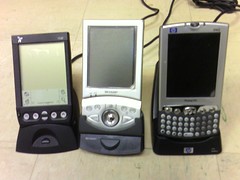
Ah, so many memories. The Visor on the left was my first PDA, a simple and well designed piece of equipment that I used with a fold-up keyboard to take field notes at Telecorp.
The Zaurus in the middle was an actual handheld PC running Linux; I quickly installed OpenZaurus so that I could perform various tricks, and I also ran Apache, MySQL, and PHP on it. Yes, that is ridiculous. The bottom part slid out to reveal a keyboard. Oh, it also took a CompactFlash card, so I acquired a CF wifi card and did a lot of surfing throughout the house.
The iPaq came at about the same time I switched my Linux laptop for a Macintosh. I had hoped that the iPaq's Windows Mobile operating system would provide a more stable and consistent runtime environment. Wifi was built in.
When the iPaq died, I faced the decision of what PDA to buy. At the top of my list was email and web browsing, which had become necessities. Fortunately, web services had really taken off by then, making SMS a de facto command line for many Internet services. So instead of a PDA, I bought a basic phone with high-speed internet capability. Here it is, two years ago.

It was much smaller and lighter than a PDA, and it allowed basic PDA-like functions. I could set calendar appointments and receive reminders via SMS. I could check email. I could do basic web surfing. I had a set of contacts, of course, which I would laboriously code into the phone. I could even look at (but not edit) my Google Docs and other services. In 2007 I began using Twitter and Facebook, mostly through the phone. In some ways that phone, with its relatively stripped-down interface, was like my beloved Visor. But without the fold-out keyboard accessory. And it began to really enhance my increasingly mobile lifestyle. I could catch up with email and tasks on the bus, for instance, or while walking across campus.
But as time wore on, phones began to incorporate other features such as GPS, and I realized that these other features were going to enhance mobility in significant ways. More on that in a future post.
Others have been comparing the G1 to the iPhone. I won't do that except peripherally. My comparisons will primarily be to my history of phones and PDAs. Look for these to come soon.
From 2000 to I think 2005, I was an avid PDA user. I went through three PDAs, shown here in a group photo:
Ah, so many memories. The Visor on the left was my first PDA, a simple and well designed piece of equipment that I used with a fold-up keyboard to take field notes at Telecorp.
The Zaurus in the middle was an actual handheld PC running Linux; I quickly installed OpenZaurus so that I could perform various tricks, and I also ran Apache, MySQL, and PHP on it. Yes, that is ridiculous. The bottom part slid out to reveal a keyboard. Oh, it also took a CompactFlash card, so I acquired a CF wifi card and did a lot of surfing throughout the house.
The iPaq came at about the same time I switched my Linux laptop for a Macintosh. I had hoped that the iPaq's Windows Mobile operating system would provide a more stable and consistent runtime environment. Wifi was built in.
When the iPaq died, I faced the decision of what PDA to buy. At the top of my list was email and web browsing, which had become necessities. Fortunately, web services had really taken off by then, making SMS a de facto command line for many Internet services. So instead of a PDA, I bought a basic phone with high-speed internet capability. Here it is, two years ago.
It was much smaller and lighter than a PDA, and it allowed basic PDA-like functions. I could set calendar appointments and receive reminders via SMS. I could check email. I could do basic web surfing. I had a set of contacts, of course, which I would laboriously code into the phone. I could even look at (but not edit) my Google Docs and other services. In 2007 I began using Twitter and Facebook, mostly through the phone. In some ways that phone, with its relatively stripped-down interface, was like my beloved Visor. But without the fold-out keyboard accessory. And it began to really enhance my increasingly mobile lifestyle. I could catch up with email and tasks on the bus, for instance, or while walking across campus.
But as time wore on, phones began to incorporate other features such as GPS, and I realized that these other features were going to enhance mobility in significant ways. More on that in a future post.
Others have been comparing the G1 to the iPhone. I won't do that except peripherally. My comparisons will primarily be to my history of phones and PDAs. Look for these to come soon.
Tuesday, November 11, 2008
Reviews of the G1
As my Twitter stream shows, I acquired a T-Mobile G1 phone on Saturday. I'm still gathering my impressions, and will blog several mini-reviews over the next couple of weeks. Unlike other reviews, I won't spend a lot of time comparing it to the other devices I strongly considered -- the iPhone 3G and the Blackberry line of products -- but instead will discuss the progression that I took from PDAs to my previous phone to this one. As always, I'm thinking in terms of how this device will or will not support truly mobile work.
I was wrong about Jaiku
In the run-up to the T-Mobile G1 launch, I confidently predicted that the launch would coincide with the relaunch of Google's Jaiku service, which has been closed since Google acquired it. I noted how Jaiku could be the "killer app" for Android, providing location-based services with Twitter functionality and GMaps integration.
Well, here we are in the second week of November, and my prediction was wrong, wrong, wrong. Too bad. Google, get it together! Why don't you listen to me?
Well, here we are in the second week of November, and my prediction was wrong, wrong, wrong. Too bad. Google, get it together! Why don't you listen to me?
"Your business has accumulated a lot of stupid."
NotAnMBA has thoughts on how to take the opportunity of lean times to restructure your business. Less hierarchical, more networked.
GTD calendars
Stephen at HD BizBlog is selling the 2009 version of his DIY calendar along with other GTD collateral. Product description says:
This is a one-page-per-day DIY calendar page that is designed with the F-pattern for eye-tracking. This special design takes your natural eye movements into account, making it far more efficient for retrieving the important data that you have put into the calendar.I'm still surprised at how flexible the GTD framework has turned out to be. David Allen advocates fairly simple tools - desk calendars, index cards - but in an era of cheap customization we see lots of entrepreneurs bringing their own expertise to bear on the framework to create supplemental tools. GTD is like the Twitter of productivity systems.
Thursday, November 06, 2008
Those Sarah Palin rumors
Ann Althouse has a thoughtful post on the reports you may have heard, the reports emanating from inside the McCain campaign regarding Sarah Palin's intellect and conduct. You may have heard them already: Palin thought Africa was a country rather than a continent. Palin appeared to McCain's aides in a bathrobe. Palin acted like a diva and didn't prepare for her interview with Katie Couric. Althouse is skeptical:
We don't know who's telling these stories, but obviously, there are many people with the motivation to blame others. Even assuming the stories are true, they don't have to be told. Why destroy Palin, a rising star in the Republican Party? Who wants her ruined? I'm not saying she doesn't deserve to be ruined. I want to know if the stories are true, and I want them in their most accurate form. (She thought Africa was a country? Really? Was this the slip of a tired, inattentive person, or someone who is clearly an ignoramus?) But I also want to know who wants us to know all these ugly things and why.Right. Losing (and lost) campaigns tend to find scapegoats, partially because the aides want to avoid blame when they seek their next job, and partially because campaigns are an exercise in holding together fractious parties. The campaign is over, and now the Republican factions will enter a period of infighting among social conservatives, fiscal conservatives, small-government conservatives, neoconservatives, etc. as they renegotiate their coalition.
change.gov
I didn't know there was an Office of the President-Elect, but I am glad to see change.gov, which should give a window into the transition process for our new president.
I'm hoping more of the site becomes interactive as time goes on, though -- right now it's mostly brochureware. The "Agenda" section looks like it has been repurposed from the campaign website.
I'm hoping more of the site becomes interactive as time goes on, though -- right now it's mostly brochureware. The "Agenda" section looks like it has been repurposed from the campaign website.
Tuesday, November 04, 2008
Juice
I've seen this Firefox extension pop up in a few places this morning, so when I got a chance, I installed it so I could take a look. Amazing.
You know how you're reading a story in your browser, you get interested in a particular phrase, and you get distracted as you Google for it, check Wikipedia about it, and so forth? Juice does all that research for you in a side pane. You highlight the phrase, drag it slightly to the right, and the rest of the work is done automatically. It might be enough to make me stick with Firefox as my primary browser even after Chrome for OSX comes out.
You know how you're reading a story in your browser, you get interested in a particular phrase, and you get distracted as you Google for it, check Wikipedia about it, and so forth? Juice does all that research for you in a side pane. You highlight the phrase, drag it slightly to the right, and the rest of the work is done automatically. It might be enough to make me stick with Firefox as my primary browser even after Chrome for OSX comes out.
Saturday, November 01, 2008
Obama's Smart Mobs
Via @amuse, an article at the NYT about how the Obama campaign has used text messaging to conduct volunteers in agile campaigning.
Monday, October 27, 2008
Rolling your own free, customized, free, multiplatform, and free qualitative data analysis tool. For free.
Qualitative data analysis tools are expensive. When I came to UT in 2001, I had the university spend $500 on one popular QDA tool, NVivo. It was going to change the way I did research. So I installed it, played around with it, was not impressed, and abandoned it.
Much more recently, I decided to try HyperResearch on the advice of a grad students from Education. Again, UT sprang for the $400 needed to buy it. I used it for two studies and again, I was not impressed: in some ways it was very limiting, particularly in terms of relating various types of data and coding. The interface was clunky.
And look: $900 spent for nothing.
But between those two times, I managed to analyze 89 sets of observations, 84 interviews, and assorted artifacts. This work followed me across three platforms (Linux, MacOSX, OpenZaurus), and it didn't involve an off-the-shelf qualitative research tool. I'm coming back to this solution for managing the data in my latest study, a study of collaboration and project management at high tech organizations. It offers better print formatting, more flexible data analysis, and multiple interfaces that can be chosen for the specific type of analysis or data entry. It's multiplatform. Fast. And it didn't cost me a dime.
So how do you save $400, $500, or even $900 on your next qualitative research project? It takes a little setup, but you can do it.
Needs
When you're analyzing qualitative data, you might have several different kinds of data. Here's the data types I regularly use:
In addition, you typically have administrative data such as information on participants (I include first and last name, pseudonym, and title at minimum).
For each of these data, qualitative analysis includes coding. You can code in several different ways, but let's keep it simple and think of coding as free-form tagging.
So how do you make sense of all this? Let's start with some don'ts:
Don'ts
Don't use Excel or other spreadsheets. Spreadsheets only offer two dimensions, and that means you're very limited in how you analyze the data. You'll end up doing one of the following:
Don't store your data online. Several free web-based services offer great solutions. But your data will not be secure. In many cases, you simply won't be allowed to store your data on an unencrypted server that isn't administered by the university.
So that's what you don't do. Now here's what I do.
Overview of My System
I use a MySQL database to store the data, with a different database table for each kind of data. The first table to set up is the Participant table, with each participant receiving a key index number. Other tables are all indexed by that participant number, so I can join tables based on participant.
Each table has a CODES field where I can insert codes from a list. I keep the list of codes in a text editor and surround each one with asterisks like this:
To analyze the data, I use several MySQL front ends, including YourSQL, CocoaMySQL, and phpMySQL. These front ends are all free, they afford different views of the data, but they all work on the same underlying data. The result is far more flexibility than I would get from an off-the-shelf QDA tool.
Limitations
Obviously, this solution isn't for everyone:
The setup is not hard, but you'll need to be comfortable with uncertainty. Or get your system administrator to do it.
1. Download and install MySQL.
Go to mysql.com (or mysql.org) and download the free software. It has versions for several operating systems. The site also has a ton of documentation; keep a window open for installation.
2. Download one or more MySQL front ends.
Cruise on over to sourceforge.net and search for SQL. You should get a large list of SQL utilities and clients, some of which will be applicable, many of which won't be. I am using OSX, so I downloaded the following front ends:
Follow your MySQL installation instructions to set a root user and password. (You can set different user and permission levels, but if you're the only one using the database, why bother?)
Once you do this, run your front end (or one of them, if you downloaded several) and follow instructions to connect to MySQL. Then create a database. I suggest naming it something descriptive -- not "research". For instance, I named the database for my current project "research-pm" -- the same name I used for my tags in GMail, GDocs, and Remember the Milk for the same project.
4. Create a table for participants. Create rows.
Now you create tables within the database. MySQL is a relational database, which means that you can relate the tables in different ways once you have them set up. I typically make the participants table the "handle" for most of the rest of the database, since most of my analysis focuses on what individuals do and say. So we create that one first.
So what do you need to know about your participants? I usually put in the following information:
5. Create tables and rows for each kind of data you collect.
Each will be indexed to the participants table. For my current study, I created:
You can do this manually via one of the front ends. You'll find that each front end has advantages and disadvantages in terms of data entry.
If you don't mind learning a little SQL, you can take your raw data (say, observational notes or transcribed interview notes) and insert the appropriate SQL around them with some search and replace commands. Once you do that, you can plug the whole mess in as a single query and it'll update the table with that data. That's what I do. It's much faster as long as you're willing to spend half an hour learning the appropriate SQL command (INSERT).
7. Code the table.
Now that the data are in the tables, code each table. In this scheme, that means filling the "codes" field for each row of each table. Codes can come from your starter codes, open coding, axial coding, or all three. I typically put them all in the same field; you could differentiate them or place them in different fields if you think you need that level of complexity.
Note: If you code thousands of lines of data with a code (say, **WORKPLACE**) and then decide you really need to rename this code (say, to **WORK**), you can do a search-and-replace with the "update" command. See documentation for details.
Similarly, you can do autocoding with an "update" command. For instance, suppose you want to make sure that each mention of "msword" in the field notes is coded with **SOFTWARE_OFFICE**. You can use "update" to search for those incidents and code them appropriately. Brute-force coding can be tricky -- you risk false positives and broad-brush characterization of the data -- but depending on your data, it can also be very useful and gain a lot of traction quickly.
How to Search
Now that you've entered and coded the data, you can do simple and complex searches.
1. Simple searches within tables
These are searches within one table. For instance, suppose you want to find a mention of msword in your observational notes just so you can look up the context. Or you want to see how many interview notes are coded with **SOFTWARE_OFFICE**. I usually use these two tools:
Search-as-you-type (YourSQL)
I love search-as-you-type. The idea is that as you start typing the string, the results reduce. Eventually you have zeroed in on the data you want, even before you're done typing.
The advantage is that you get the results quickly. The disadvantage is that this method searches across all fields, so you might get false positives. Suppose you're looking for "software" in the observational notes, but you catch all instances of **SOFTWARE_OFFICE** in the codes.
Search by string (CocoaMySQL)
This method allows you to specify the field and the relationship before you search. So you might set "obskey=1" to catch all observations of participant 1, or "codes like "%**SOFTWARE_%" to catch all observations where the codes field includes a code starting with "**SOFTWARE_".
The advantage is that the search is fine-grained and focuses on just one field. The disadvantages are that (a) it's not as fast as search-as-you-type and (b) you can't set up searches that look in more than one field.
But if you want to set up more complex searches that go across tables, you'll have to learn a little more SQL.
2. Complex searches joining tables
Since MySQL is relational, you can link these tables you've set up, and the result is a much more powerful set of queries.
Here's an example from the Telecorp study that became my second book. I had the following tables:
That's too complex for the simple queries earlier. So I ran the simple SQL query. The names after dots (ex: workers.fname) are field names in the given table.
Formulating these can be a pain, so I formulate them once, make sure they work, then save them. If I want to run it again with a different code, I copy and paste.
How to Print
One big problem with HyperResearch is that it does an appalling job printing data. In the system I've described, you could print in a number of ways. The best two are:
Conclusion
So that's a lot to absorb, and I would have to write an entire tutorial to give you a more detailed idea of how to implement this system. Since I'm sort of busy with research, I won't do that. But don't hesitate to comment with specific questions.
Much more recently, I decided to try HyperResearch on the advice of a grad students from Education. Again, UT sprang for the $400 needed to buy it. I used it for two studies and again, I was not impressed: in some ways it was very limiting, particularly in terms of relating various types of data and coding. The interface was clunky.
And look: $900 spent for nothing.
But between those two times, I managed to analyze 89 sets of observations, 84 interviews, and assorted artifacts. This work followed me across three platforms (Linux, MacOSX, OpenZaurus), and it didn't involve an off-the-shelf qualitative research tool. I'm coming back to this solution for managing the data in my latest study, a study of collaboration and project management at high tech organizations. It offers better print formatting, more flexible data analysis, and multiple interfaces that can be chosen for the specific type of analysis or data entry. It's multiplatform. Fast. And it didn't cost me a dime.
So how do you save $400, $500, or even $900 on your next qualitative research project? It takes a little setup, but you can do it.
Needs
When you're analyzing qualitative data, you might have several different kinds of data. Here's the data types I regularly use:
- Interviews (audio recordings and transcriptions)
- Observations (transcribed field notes)
- Artifacts (usually digital photos or paper that can be scanned; I have also recorded ambient noise at sites.)
In addition, you typically have administrative data such as information on participants (I include first and last name, pseudonym, and title at minimum).
For each of these data, qualitative analysis includes coding. You can code in several different ways, but let's keep it simple and think of coding as free-form tagging.
So how do you make sense of all this? Let's start with some don'ts:
Don'ts
Don't use Excel or other spreadsheets. Spreadsheets only offer two dimensions, and that means you're very limited in how you analyze the data. You'll end up doing one of the following:
- Creating a spreadsheet for each datatype. So you'll have spreadsheets for observations, for interviews, etc. Since spreadsheets don't provide an intuitive or robust way to link data between spreadsheets, you'd have to do that connective work by hand.
- Creating a single spreadsheet into which all data go. This will involve tremendous redundancy, with several fields going empty in every entry -- and lots of redundant data, since you'll have to tag name and date for every entry.
Don't store your data online. Several free web-based services offer great solutions. But your data will not be secure. In many cases, you simply won't be allowed to store your data on an unencrypted server that isn't administered by the university.
So that's what you don't do. Now here's what I do.
Overview of My System
I use a MySQL database to store the data, with a different database table for each kind of data. The first table to set up is the Participant table, with each participant receiving a key index number. Other tables are all indexed by that participant number, so I can join tables based on participant.
Each table has a CODES field where I can insert codes from a list. I keep the list of codes in a text editor and surround each one with asterisks like this:
**COMPANY_HISTORY**The asterisks allow me to search across a table and pick up just the codes -- searching for "**COMPANY" picks up codes that start with that string, while searching for "COMPANY" might pick up uses of the actual word in interview or observational notes.
To analyze the data, I use several MySQL front ends, including YourSQL, CocoaMySQL, and phpMySQL. These front ends are all free, they afford different views of the data, but they all work on the same underlying data. The result is far more flexibility than I would get from an off-the-shelf QDA tool.
Limitations
Obviously, this solution isn't for everyone:
- You don't have to learn SQL, but learning just a little bit will make your life a lot easier.
- You may have a hard time storing files in your SQL database, depending on your front end. I typically store them on the hard drive and store filenames and metadata in the database.
- This method allows you to code by line, not by line portions or longer blocks.
The setup is not hard, but you'll need to be comfortable with uncertainty. Or get your system administrator to do it.
1. Download and install MySQL.
Go to mysql.com (or mysql.org) and download the free software. It has versions for several operating systems. The site also has a ton of documentation; keep a window open for installation.
2. Download one or more MySQL front ends.
Cruise on over to sourceforge.net and search for SQL. You should get a large list of SQL utilities and clients, some of which will be applicable, many of which won't be. I am using OSX, so I downloaded the following front ends:
- YourSQL
- CocoaMySQL
- phpMySQL (this one runs on your internal web server, so it works across platforms, just like MySQL. It will take some additional setup.)
Follow your MySQL installation instructions to set a root user and password. (You can set different user and permission levels, but if you're the only one using the database, why bother?)
Once you do this, run your front end (or one of them, if you downloaded several) and follow instructions to connect to MySQL. Then create a database. I suggest naming it something descriptive -- not "research". For instance, I named the database for my current project "research-pm" -- the same name I used for my tags in GMail, GDocs, and Remember the Milk for the same project.
4. Create a table for participants. Create rows.
Now you create tables within the database. MySQL is a relational database, which means that you can relate the tables in different ways once you have them set up. I typically make the participants table the "handle" for most of the rest of the database, since most of my analysis focuses on what individuals do and say. So we create that one first.
So what do you need to know about your participants? I usually put in the following information:
- pkey: a participants key. It's a unique integer that identifies the participant. When you refer to participants in other tables -- such as observational notes -- you can use that same number to designate the same participant in these other tables.
- lname: Participant's last name.
- fname: Participant's first name.
- fname_p: Pseudonym.
- position: text field for their job title (or similar information that might be relevant, such as profession).
- site: If the study includes multiple sites, use either a text string or a number to indicate each.
- Observation and interview dates: Depending on the data collected, you might or might not include these dates. Usually you can get these from querying the appropriate data tables.
5. Create tables and rows for each kind of data you collect.
Each will be indexed to the participants table. For my current study, I created:
- observations
- interviews
- interviewfiles
- artifacts
- site notes
- key: The unique key for this piece of data. If it's from an observation, you might call this "okey," etc.
- pkey: This field links the individual to her or his data. If a given observation was of participant 1, you'd put a 1 here.
- date: The date you collected the data. If it's an observation, you might call it "obsdate," etc.
- text: The data itself. For instance, if you're filling in observational notes, "obstext" would contain perhaps a paragraph from your notes. If it's an interview, "inttext" would contain an answer or paragraph from the transcribed interview.
- codes: The codes you assign to this piece of data.
- notes: Any additional information you might want to insert that doesn't fit into the fields above. Sometimes I use this to make notes about further investigation, artifacts I should collect, or methodological issues.
You can do this manually via one of the front ends. You'll find that each front end has advantages and disadvantages in terms of data entry.
If you don't mind learning a little SQL, you can take your raw data (say, observational notes or transcribed interview notes) and insert the appropriate SQL around them with some search and replace commands. Once you do that, you can plug the whole mess in as a single query and it'll update the table with that data. That's what I do. It's much faster as long as you're willing to spend half an hour learning the appropriate SQL command (INSERT).
7. Code the table.
Now that the data are in the tables, code each table. In this scheme, that means filling the "codes" field for each row of each table. Codes can come from your starter codes, open coding, axial coding, or all three. I typically put them all in the same field; you could differentiate them or place them in different fields if you think you need that level of complexity.
Note: If you code thousands of lines of data with a code (say, **WORKPLACE**) and then decide you really need to rename this code (say, to **WORK**), you can do a search-and-replace with the "update" command. See documentation for details.
Similarly, you can do autocoding with an "update" command. For instance, suppose you want to make sure that each mention of "msword" in the field notes is coded with **SOFTWARE_OFFICE**. You can use "update" to search for those incidents and code them appropriately. Brute-force coding can be tricky -- you risk false positives and broad-brush characterization of the data -- but depending on your data, it can also be very useful and gain a lot of traction quickly.
How to Search
Now that you've entered and coded the data, you can do simple and complex searches.
1. Simple searches within tables
These are searches within one table. For instance, suppose you want to find a mention of msword in your observational notes just so you can look up the context. Or you want to see how many interview notes are coded with **SOFTWARE_OFFICE**. I usually use these two tools:
Search-as-you-type (YourSQL)
I love search-as-you-type. The idea is that as you start typing the string, the results reduce. Eventually you have zeroed in on the data you want, even before you're done typing.
The advantage is that you get the results quickly. The disadvantage is that this method searches across all fields, so you might get false positives. Suppose you're looking for "software" in the observational notes, but you catch all instances of **SOFTWARE_OFFICE** in the codes.
Search by string (CocoaMySQL)
This method allows you to specify the field and the relationship before you search. So you might set "obskey=1" to catch all observations of participant 1, or "codes like "%**SOFTWARE_%" to catch all observations where the codes field includes a code starting with "**SOFTWARE_".
The advantage is that the search is fine-grained and focuses on just one field. The disadvantages are that (a) it's not as fast as search-as-you-type and (b) you can't set up searches that look in more than one field.
But if you want to set up more complex searches that go across tables, you'll have to learn a little more SQL.
2. Complex searches joining tables
Since MySQL is relational, you can link these tables you've set up, and the result is a much more powerful set of queries.
Here's an example from the Telecorp study that became my second book. I had the following tables:
- "workers"
- "interviews"
That's too complex for the simple queries earlier. So I ran the simple SQL query. The names after dots (ex: workers.fname) are field names in the given table.
select workers.wkey, workers.fname, workers.fname_p, interviews.notes, interviews.codes from workers, interviews where ((workers.area='Customer Service') and (workers.wkey=interviews.wkey) and (interviews.codes like '%**JOB_DESCRIPTION**%'))So we can get really specific searches that join the different tables and allow us to slice the data in different ways. I could have added further codes beyond job description, searched across additional areas, specified a date, etc. In fact, I did do all of these, and I occasionally joined three tables to yield really interesting connections among the different types of data.
Formulating these can be a pain, so I formulate them once, make sure they work, then save them. If I want to run it again with a different code, I copy and paste.
How to Print
One big problem with HyperResearch is that it does an appalling job printing data. In the system I've described, you could print in a number of ways. The best two are:
- Use phpMySQL to generate the table you want, then print from the browser.
- Use MySQL from the command line to dump the query into an HTML file.
Conclusion
So that's a lot to absorb, and I would have to write an entire tutorial to give you a more detailed idea of how to implement this system. Since I'm sort of busy with research, I won't do that. But don't hesitate to comment with specific questions.
Saturday, October 25, 2008
Blogs are Op-Eds, Twitter is a Focus Group
That's the upshot of Mark McKinnon's latest:
Twitter is filling an important gap in the digital democracy -- a gap that most did not even know was there. If blogs are the inner monologues that occur after we have had a chance to sit down and think, then Twitter is the internal (albeit sometimes random) thoughts that most of us have all day long. Twitter allows us to tap into the collective brain; there is something very fascinating but strangely voyeuristic about this.And (in contrast to my heading above):
Twitter is more than just a large, unorganized focus group; it is a link to real-time constituent consciousness.An example:
For anybody who had his or her computer open to this page while watching the debate, it would have been hard not to notice the stark contrast between the stoic live audience and the very lively online audience. It was not as dramatic a shift as the first televised debates almost 50 years ago between Kennedy and Nixon, but more subtly suggested the game has changed.Yes, sort of. I noticed that people in my Twitter stream all seemed to think that their candidate was creaming the other one -- even though they backed different candidates. Comments tended to focus on microlevel concerns such as candidates' facial expressions, verbal missteps, perceived slights, and imagined inner dialogues of the candidates. It makes sense that these spontaneous reactions came out of this spontaneous medium. Watching these Twitter streams allows you to see memes emerging, but also the prejudgments and entrenchments that people bring to the debates. They have to be triangulated with other, less spontaneous indicators to actually mean something for elections, I think.
Thursday, October 23, 2008
You can't use Evernote for qualitative data analysis, even though it would be perfect
I mentioned a few days ago on my Twitter stream that qualitative data analysis tools are expensive and tended to lag other software, and that I preferred to build my own customized databases for QDA with MySQL and various front ends. More on that soon. But first, a few words about Evernote.
Evernote is described this way:
Whatever gets uploaded is "run ... through our recognition technology" and synchronized across all your input devices. Then you tag it and make notes. Tagging, of course, is a great way to code data. Now you have a vast, annotated, searchable database of heterogeneous data elements that can be accessed from anywhere and that is automatically synched (and therefore backed up). Perfect for qualitative data analysis, right?
Alas, no. Because any self-respecting institutional research board would balk at raw qualitative data being stored on a machine or server that is not owned and properly secured by the university. My IRB, for instance, specifies that data must be password-protected and stored on a hard drive that is encrypted at rest.
Hence I use a local, password-protected database running on an encrypted hard drive, and I set my screen saver to require a password for wakeup. I put audio, photos, etc. on the same hard drive. The drive gets backed up to a secure server. And anything I can't stick on the hard drive, such as physical collateral I pick up at the site, goes into a locked closet in my office.
Evernote is described this way:
Evernote allows you to easily capture information in any environment using whatever device or platform you find most convenient, and makes this information accessible and searchable at any time, from anywhere.Essentially, you install Evernote on all of your input devices, such as your laptop and iPhone, and capture the data you find most useful in the ways that you find most useful. So suppose that you see an interesting note on a whiteboard. You take a photo and it gets uploaded to Evernote. Text, audio, etc. all go to the same place and are accessible anywhere. Brilliant.
Whatever gets uploaded is "run ... through our recognition technology" and synchronized across all your input devices. Then you tag it and make notes. Tagging, of course, is a great way to code data. Now you have a vast, annotated, searchable database of heterogeneous data elements that can be accessed from anywhere and that is automatically synched (and therefore backed up). Perfect for qualitative data analysis, right?
Alas, no. Because any self-respecting institutional research board would balk at raw qualitative data being stored on a machine or server that is not owned and properly secured by the university. My IRB, for instance, specifies that data must be password-protected and stored on a hard drive that is encrypted at rest.
Hence I use a local, password-protected database running on an encrypted hard drive, and I set my screen saver to require a password for wakeup. I put audio, photos, etc. on the same hard drive. The drive gets backed up to a secure server. And anything I can't stick on the hard drive, such as physical collateral I pick up at the site, goes into a locked closet in my office.
Wednesday, October 22, 2008
Going to Iowa
Tomorrow I'll be flying to Iowa to visit my alma mater, Iowa State. Friday I'll deliver a rambling talk filled with personal anecdotes and accept an award.
If you're in the neighborhood, drop by!
If you're in the neighborhood, drop by!
Friday, October 17, 2008
BrightKite becomes useful
BrightKite's iPhone app now accesses the iPhone's GPS data. As you may remember, BrightKite was one of the early location-based services (LBS), but it didn't have an app for the iPhone launch or a way to extract GPS data. To update your location, you had to actually type the address. I quickly gave up on this. But the new app grabs the GPS data, which may give BrightKite a new lease on life as it competes with Loopt, Moximity, and other LBS.
Subscribe to:
Posts (Atom)
 (2003)
 Posts
Posts

